

Move chairs
Shop transfers & invites
Invite a barber who already works somewhere else. They review the offer, switch shops in one step, and keep their profile and portfolio intact.
What you get
4 capabilities
Guided flow
5 clear steps
Built for
Staff / barbers · Owners
Walkthrough
How shop transfers & invites works in Reserveo
Follow the real app flow — from the first tap to the result on the floor.
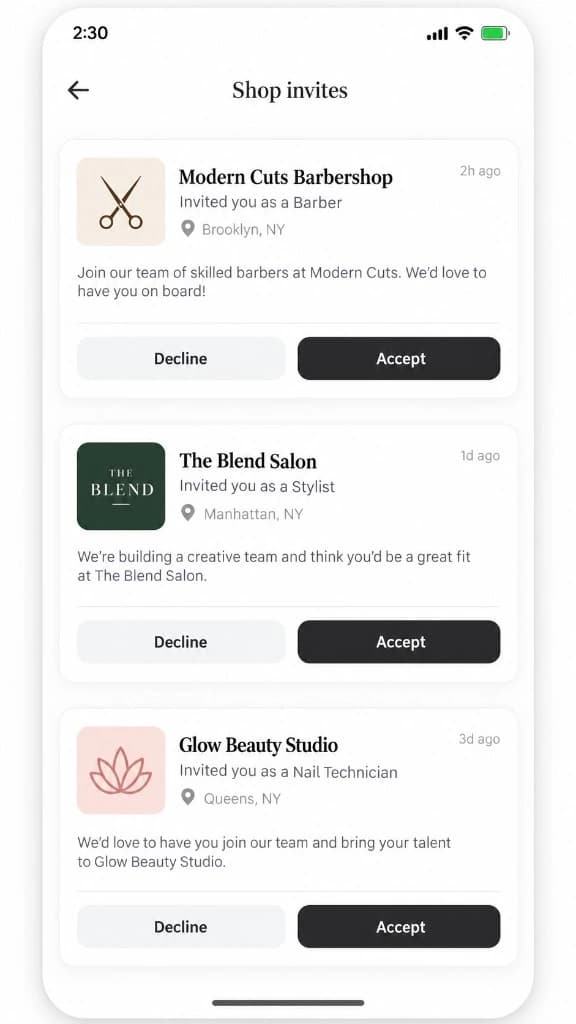
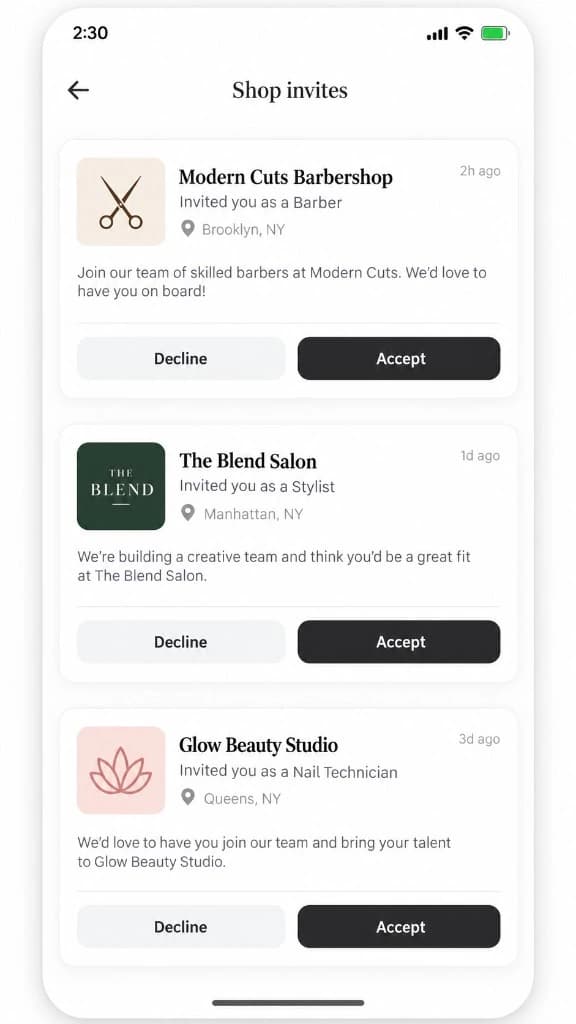
Pending invites with shop, role, location, Decline and Accept — all on one list.
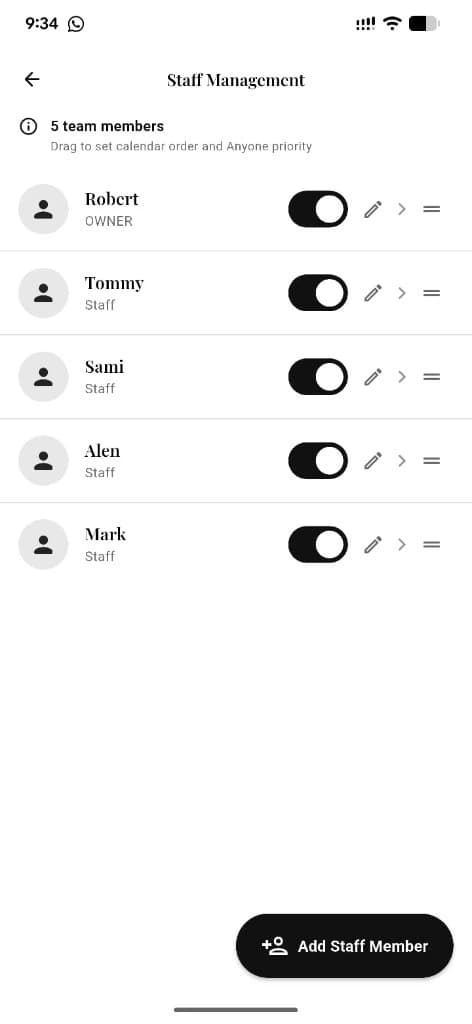
Owner adds a barber
If that person already belongs to another shop, the add becomes a transfer invite instead of a new account.
Next step ↓
Pending invites with shop, role, location, Decline and Accept — all on one list.
Invite goes pending
The owner sees it in Staff members as a pending invite and can cancel it any time.
Next step ↓
Pending invites with shop, role, location, Decline and Accept — all on one list.
Barber opens Shop invites
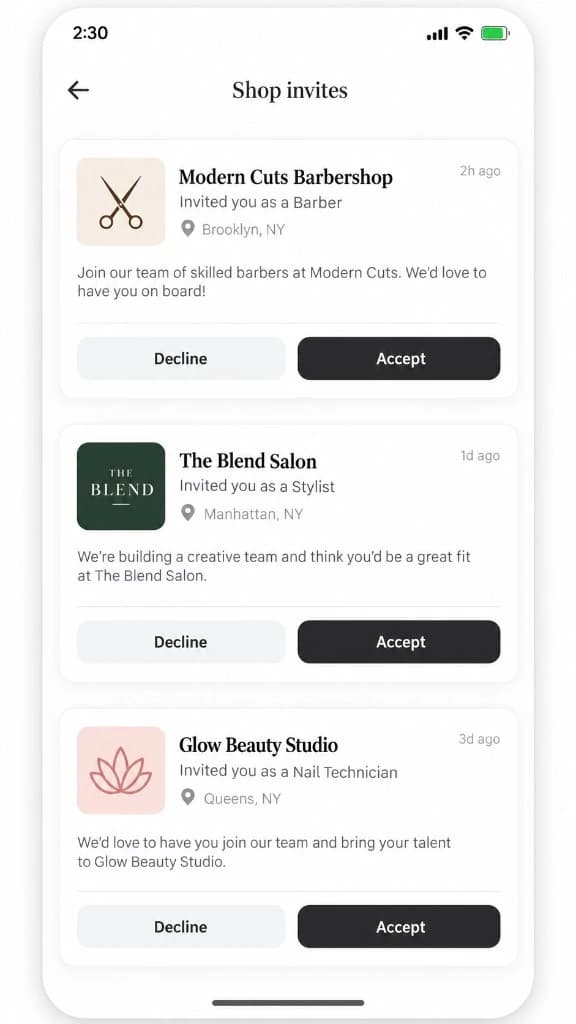
One list shows every incoming request — shop name, role, location, and message. No separate detail screen.
Next step ↓
Pending invites with shop, role, location, Decline and Accept — all on one list.
Accept or Decline here
Use the buttons on the card. Accepting confirms the switch; Declining leaves everything unchanged.
Next step ↓
Pending invites with shop, role, location, Decline and Accept — all on one list.
Both sides get told
The requesting owner is notified whether the barber joined or declined.
Done — you’re live
In the app
Screens that make the feature feel real
Deep capabilities
Everything packed into this feature
One pending request at a time
A barber cannot be pulled by two shops at once — the second attempt is blocked.
Profile & portfolio carry over
Bio, photos, and follow graph move with the barber to the new shop.
Appointment warning
Open bookings at the old shop are surfaced before the switch is confirmed.
Cancel invite
Owners can withdraw an invite while it is still pending.
Audience
Who it’s for
Owners recruiting experienced barbers, and barbers changing shops without rebuilding their profile.
Pro tips
Use it like a pro
- 1
Talk to the barber before you send the invite — it notifies them immediately.
- 2
Barbers: clear or hand over your booked appointments before you accept.
- 3
Use the jobs board when you need applicants; use transfers when you already know who you want.
Keep exploring
Features that connect with shop transfers & invites.
Put shop transfers & invites to work in your shop
Free for barbers for the first 3 months. Apps coming soon — contact us for early access.