
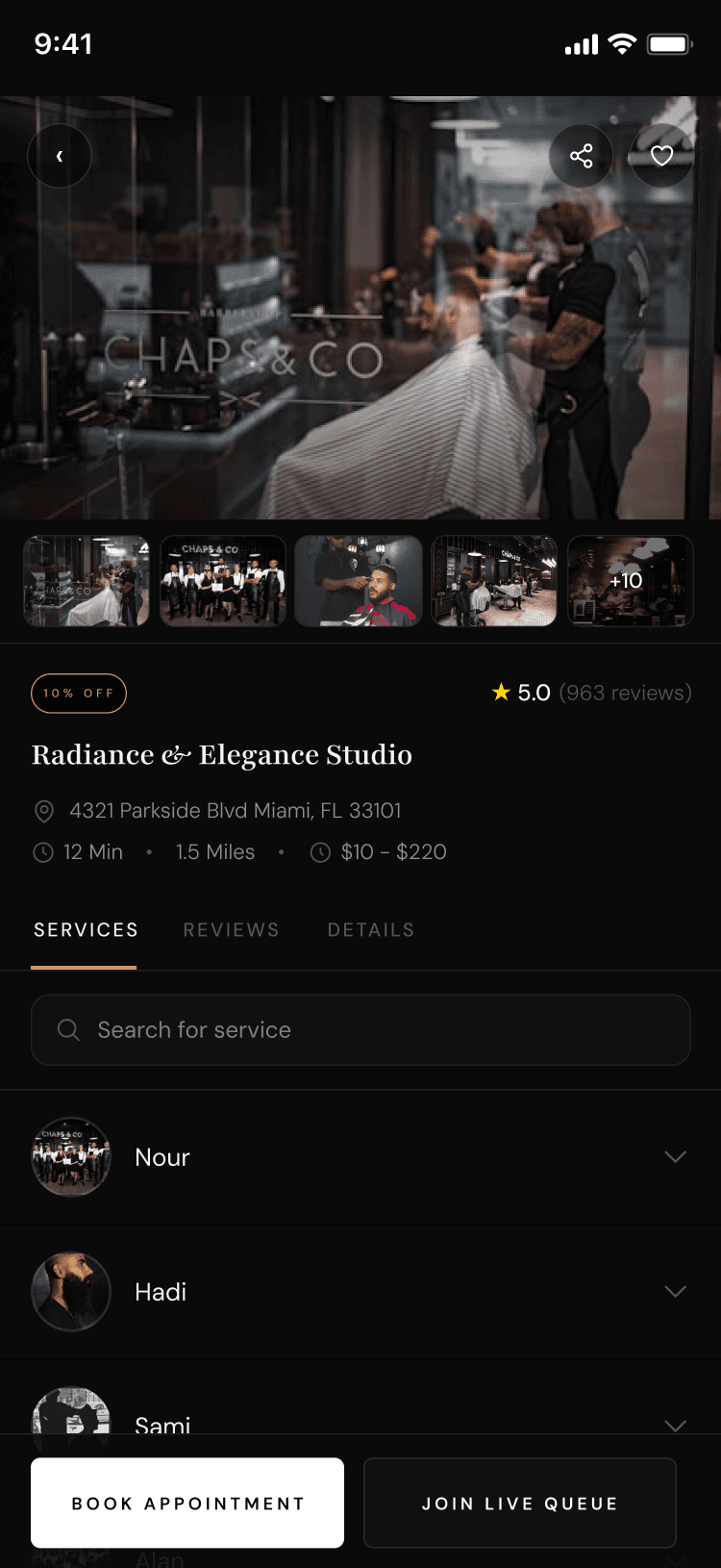

When slots are full
Waiting list
When a staff member’s day has no open slots, join a waiting list and get notified by push or email when a seat opens after a cancel or no-show.
What you get
3 capabilities
Guided flow
4 clear steps
Built for
Customers
Walkthrough
How waiting list works in Reserveo
Follow the real app flow — from the first tap to the result on the floor.
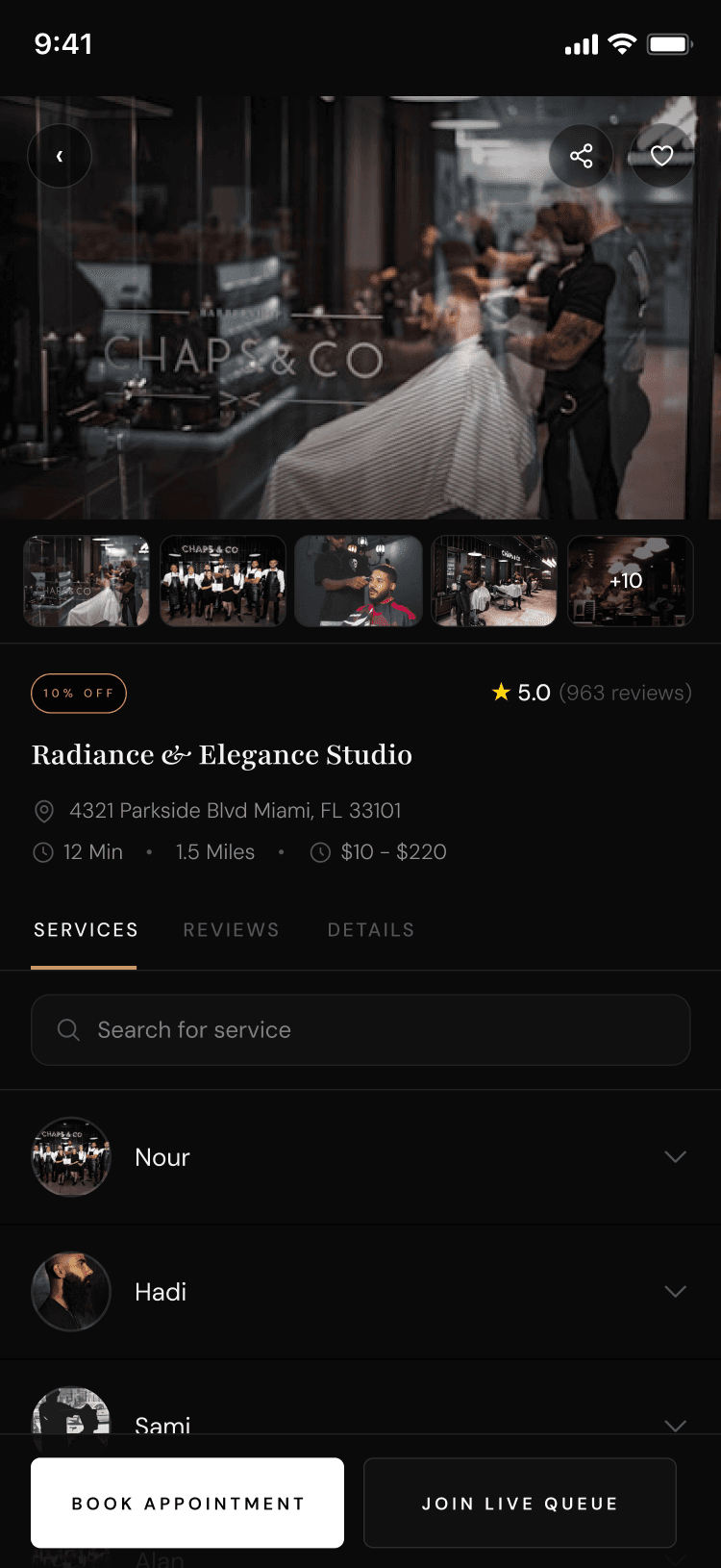
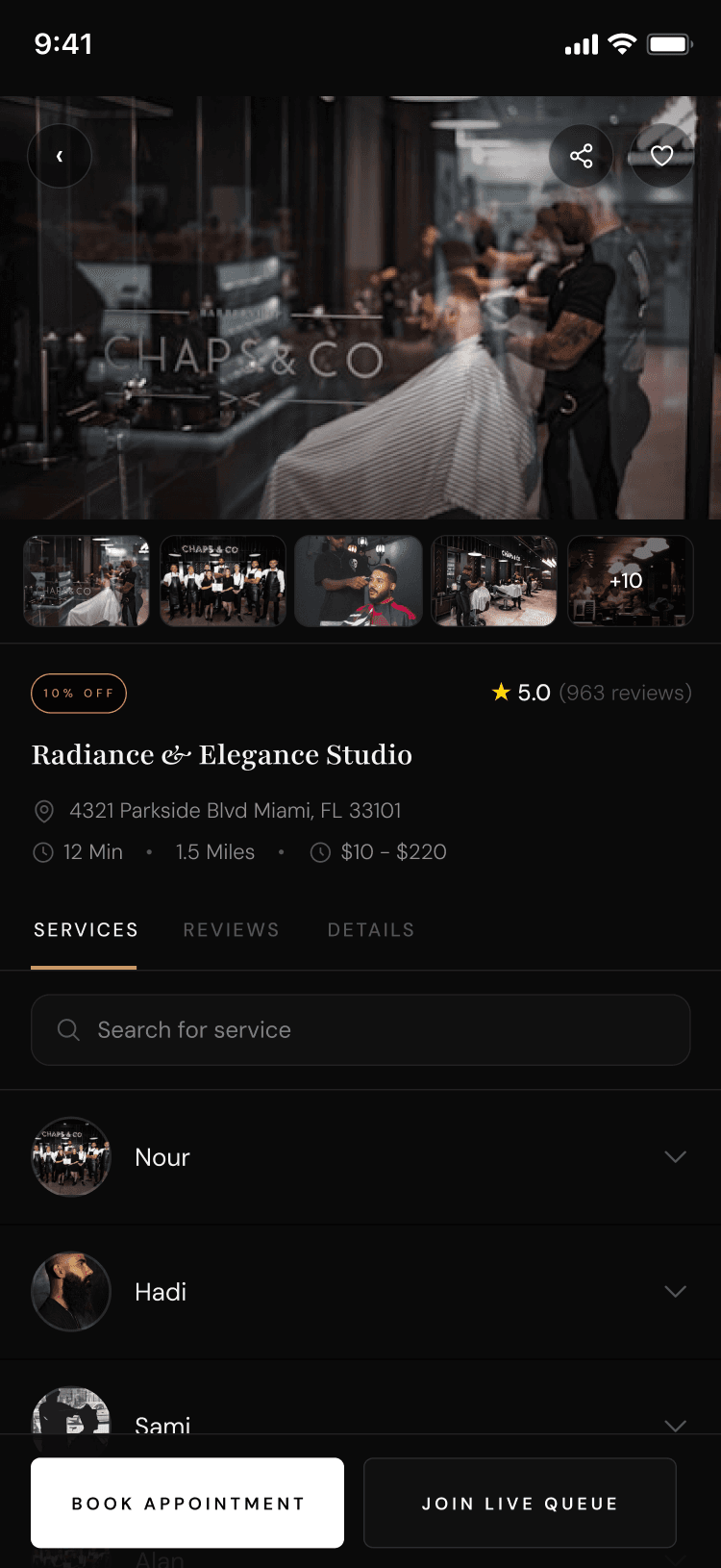
Waiting list appears when availability is empty.
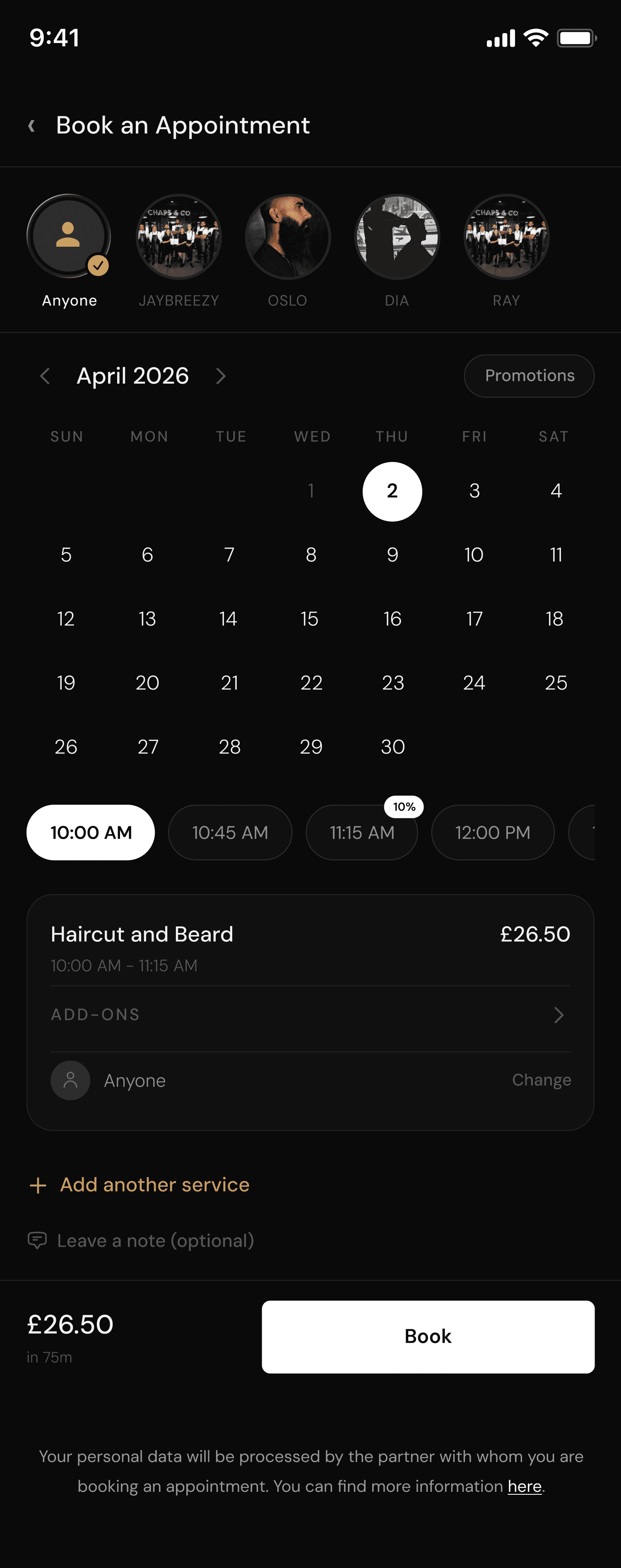
Try to book
Choose service, staff, and a day with no free slots.
Next step ↓
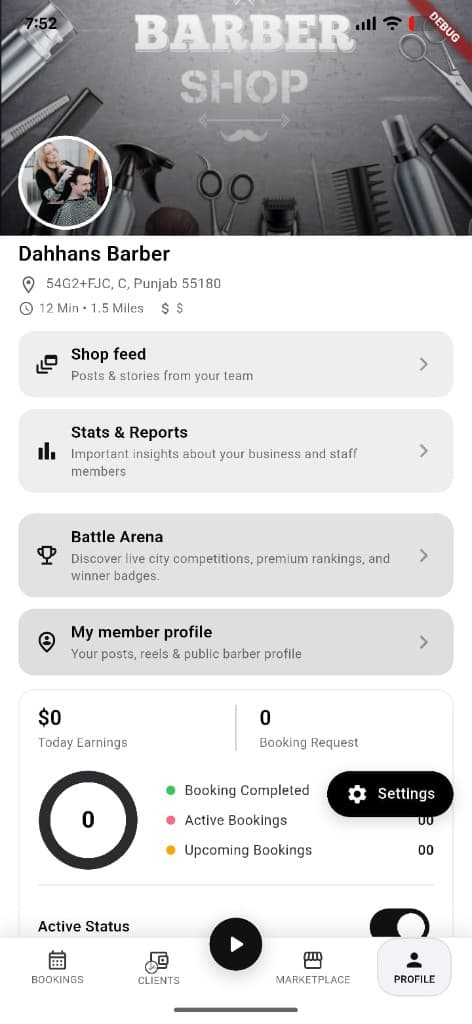
Cancels and no-shows free seats for waitlisted clients.
Join waiting list
Opt in for that staff/day instead of leaving empty-handed.
Next step ↓
Cancels and no-shows free seats for waitlisted clients.
Get notified
When someone cancels or no-shows, you get push/email that a seat opened.
Next step ↓
Cancels and no-shows free seats for waitlisted clients.
Claim the slot
Follow the notification deep link back into booking to confirm.
Done — you’re live
In the app
Screens that make the feature feel real
Deep capabilities
Everything packed into this feature
Per staff / day
Waitlists are scoped to the barber and calendar day you wanted.
Expiry
Entries can expire after the calendar day ends.
Owner visibility
Shops can list waitlist entries for a staff/day on the calendar tools.
Audience
Who it’s for
Customers chasing popular barbers; shops that want to refill last-minute gaps.
Pro tips
Use it like a pro
- 1
Enable notifications so you don’t miss the open seat.
- 2
Have a backup time ready when the alert arrives.
- 3
Owners: clear no-shows promptly to feed the waitlist.
Keep exploring
Features that connect with waiting list.
Put waiting list to work in your shop
Free for barbers for the first 3 months. Apps coming soon — contact us for early access.