

Your team
Staff Management
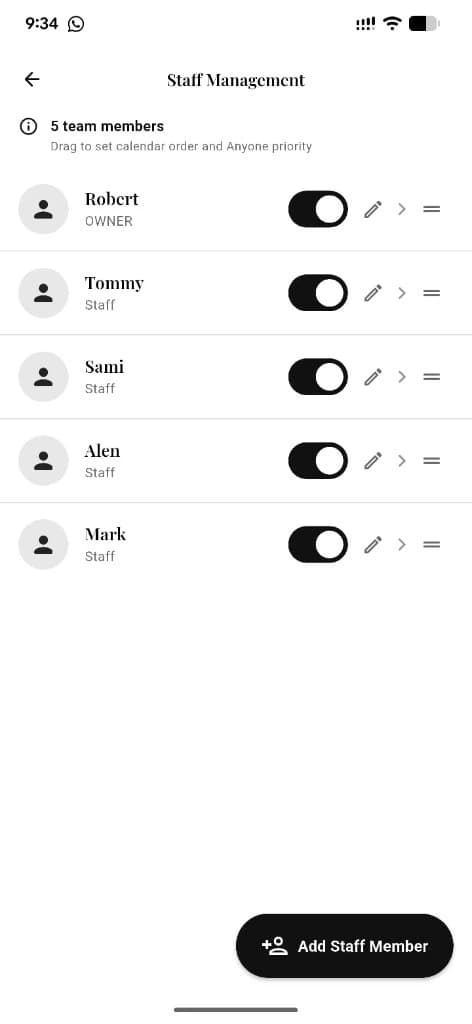
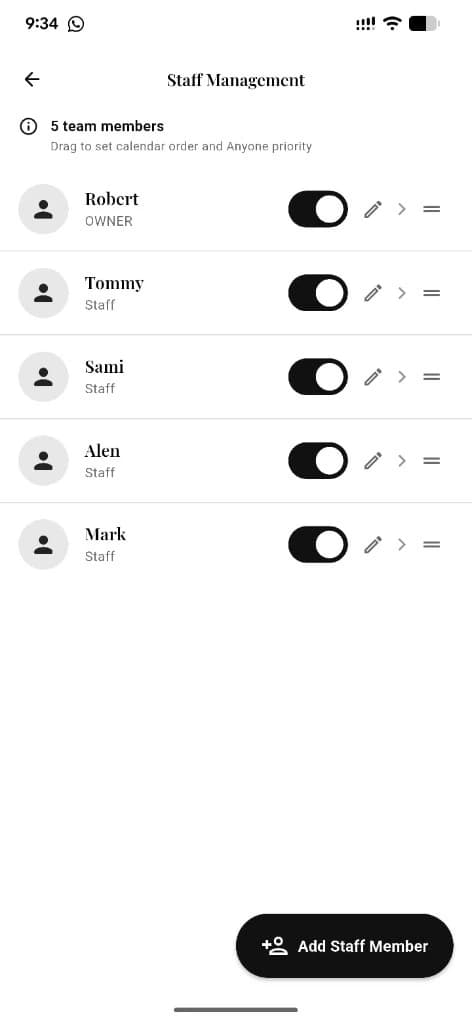
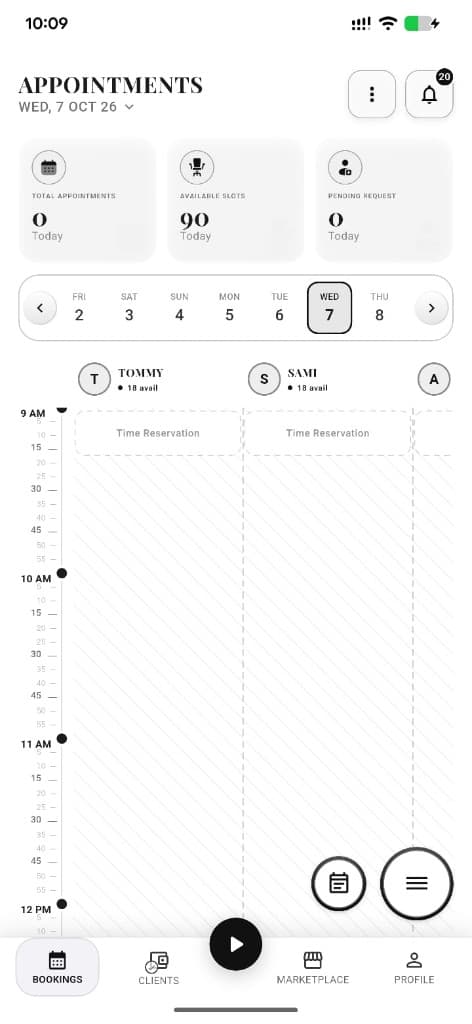
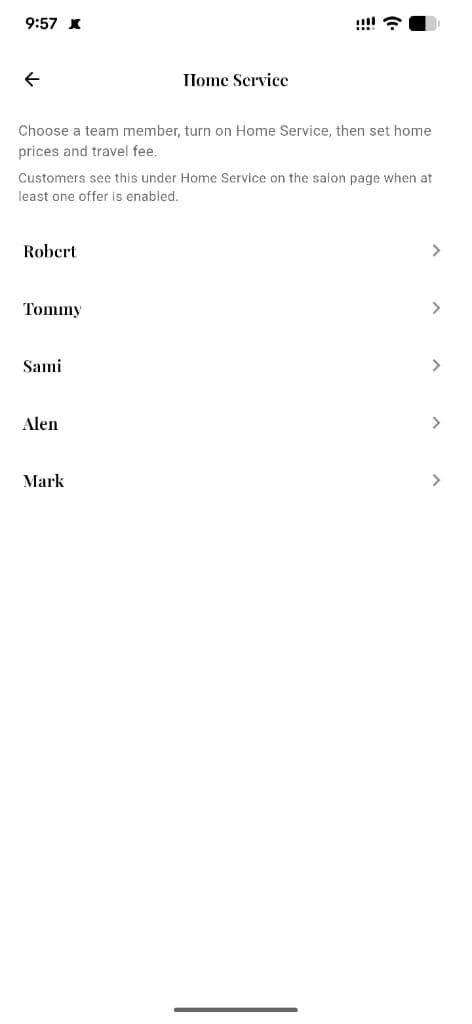
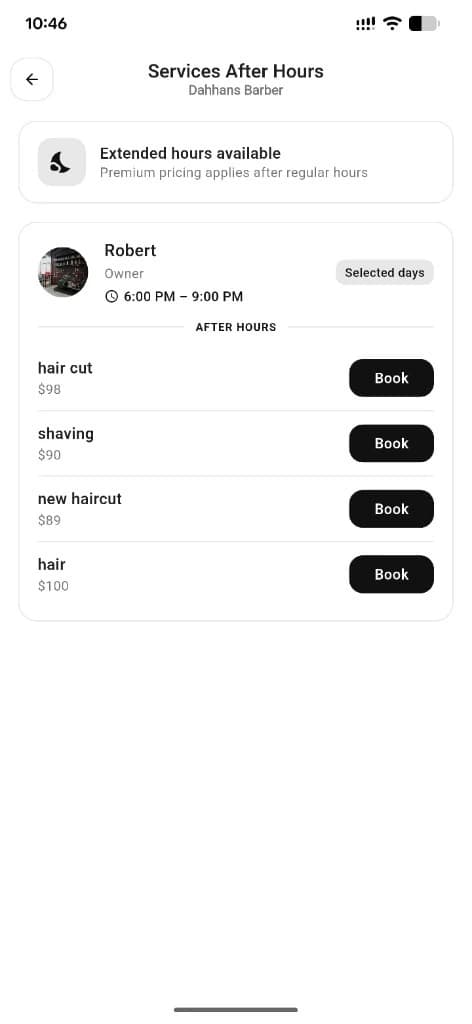
See every team member, drag calendar order and Anyone priority, toggle who is active, edit profiles, and add staff — plus roles, hours, home service, and after hours per person.
What you get
4 capabilities
Guided flow
5 clear steps
Built for
Owners · Staff / barbers
Walkthrough
How staff management works in Reserveo
Follow the real app flow — from the first tap to the result on the floor.
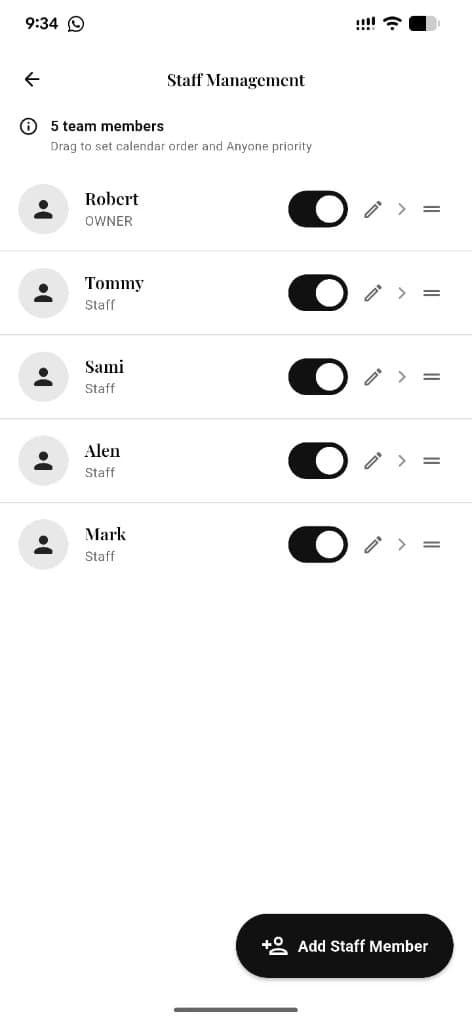
Team list with roles, active toggles, edit, and drag-to-reorder.
Open Staff Management
See the full team with roles and active status.
Next step ↓
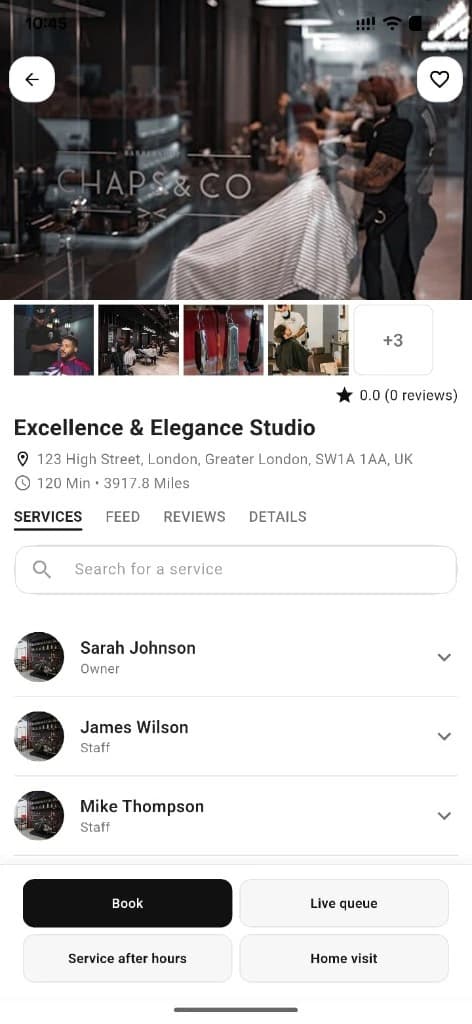
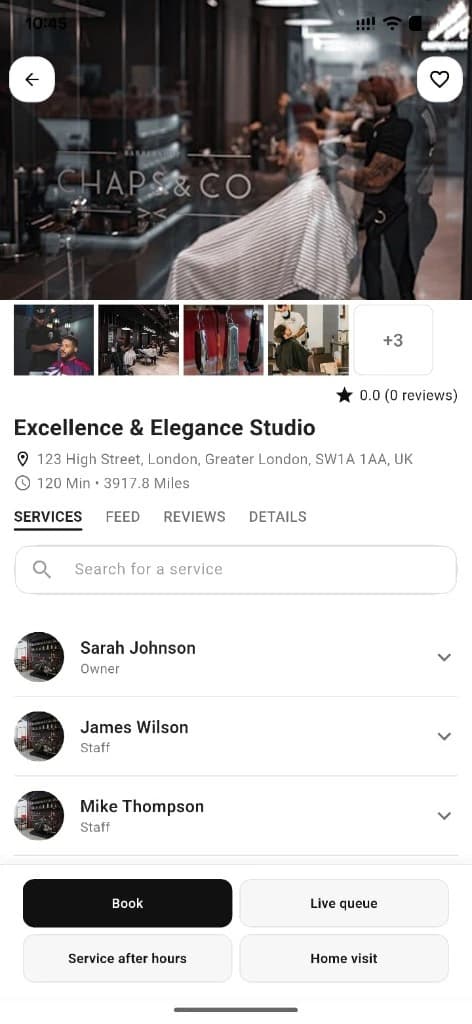
Customers pick staff from business detail.
Drag to reorder
Set calendar order and Anyone booking priority.
Next step ↓
Customers pick staff from business detail.
Add a staff member
Use Add Staff Member to invite or create someone new.
Next step ↓
Customers pick staff from business detail.
Edit a person
Pencil or chevron opens profile, role, hours, home service, and after hours.
Next step ↓
Customers pick staff from business detail.
Toggle active
Turn staff off when they’re not bookable without deleting them.
Done — you’re live
In the app
Screens that make the feature feel real
Deep capabilities
Everything packed into this feature
Team roster
Names, roles (Owner, Basic Staffer, and more), and counts.
Calendar / Anyone order
Drag handles set who appears first on the schedule.
Active toggles
Enable or pause bookable staff instantly.
Per-staff setup
Hours, time off, home service, and extra shifts from edit.
Audience
Who it’s for
Owners building a multi-chair team; barbers joining a shop.
Pro tips
Use it like a pro
- 1
Reorder staff so Anyone booking prefers your strongest chairs.
- 2
Use the active toggle for temporary leave instead of deleting the profile.
- 3
Home service and after hours are per staff — enable only who wants them.
Keep exploring
Features that connect with staff management.
Put staff management to work in your shop
Free for barbers for the first 3 months. Apps coming soon — contact us for early access.